

Appointment templates and slots
Create custom appointment templates, configure flexible daily, weekly, or monthly recurring slots, set buyer booking limits, and manage operational schedules.

Go to the Manage Appointments page located under the Administration section from the main navigation menu.
Here on this page, you can manage all your appointments for both pickup and delivery.
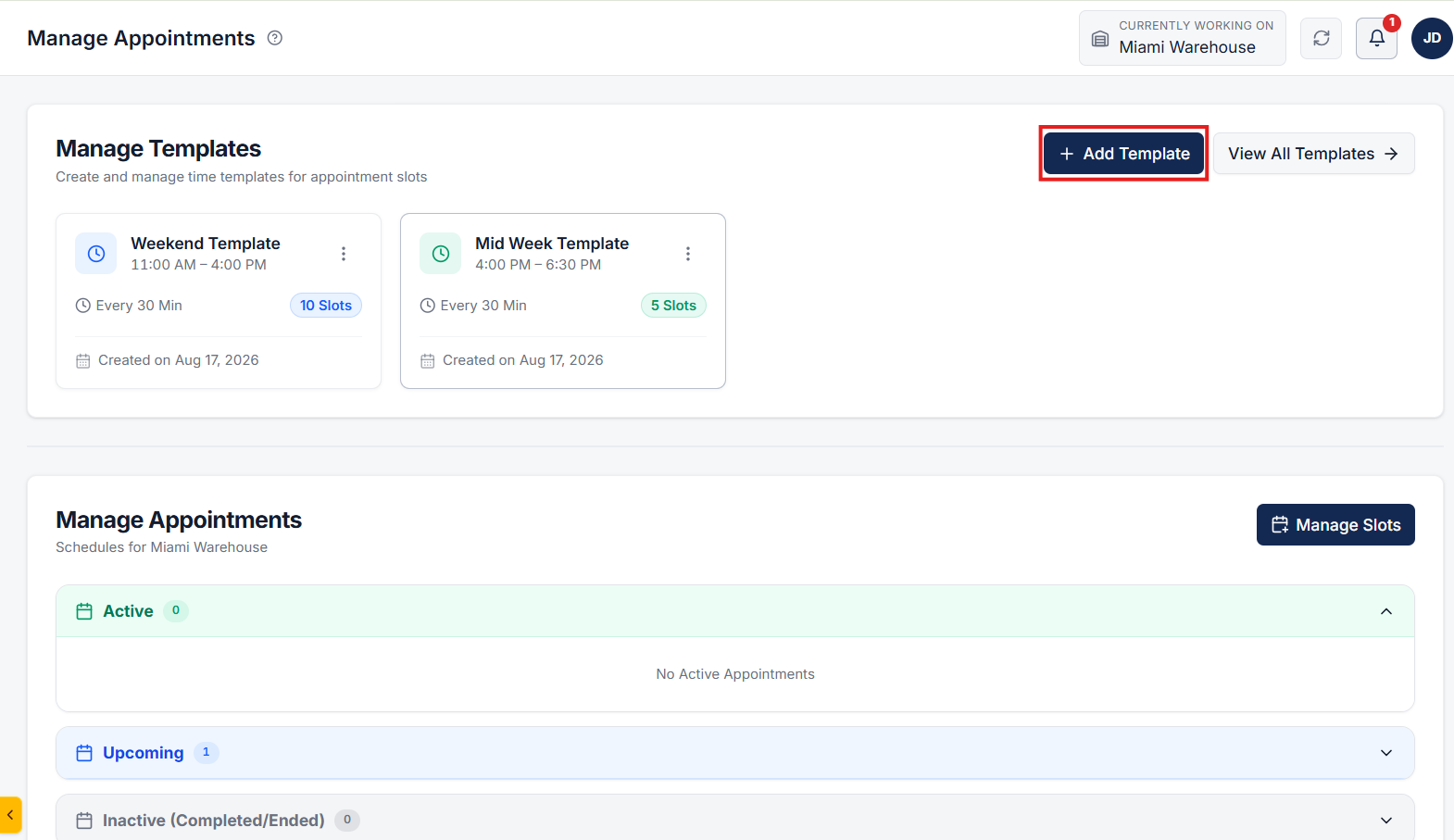
Click on the Add Template button. A popup modal will appear on the screen.
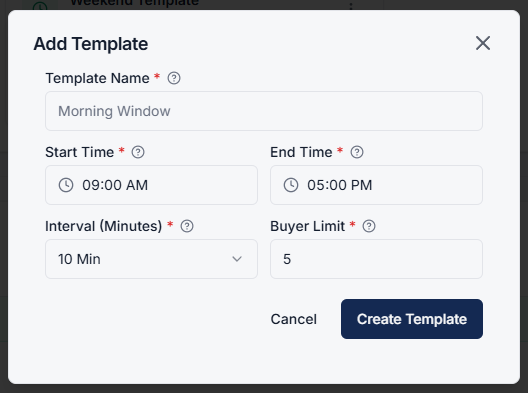
Fill in the template details:
After entering all details, click on the Create Template button to save the new template.
Click on the Manage Slot button. A popup modal will appear on the screen.
Configure the appointment slot schedule:
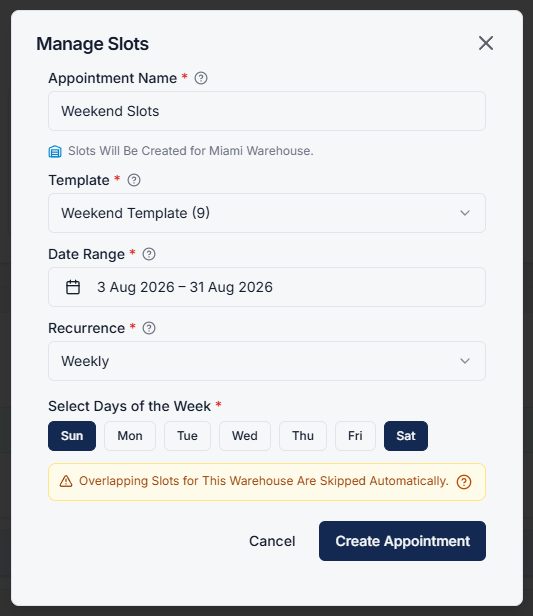
Click on the Create Appointment button.
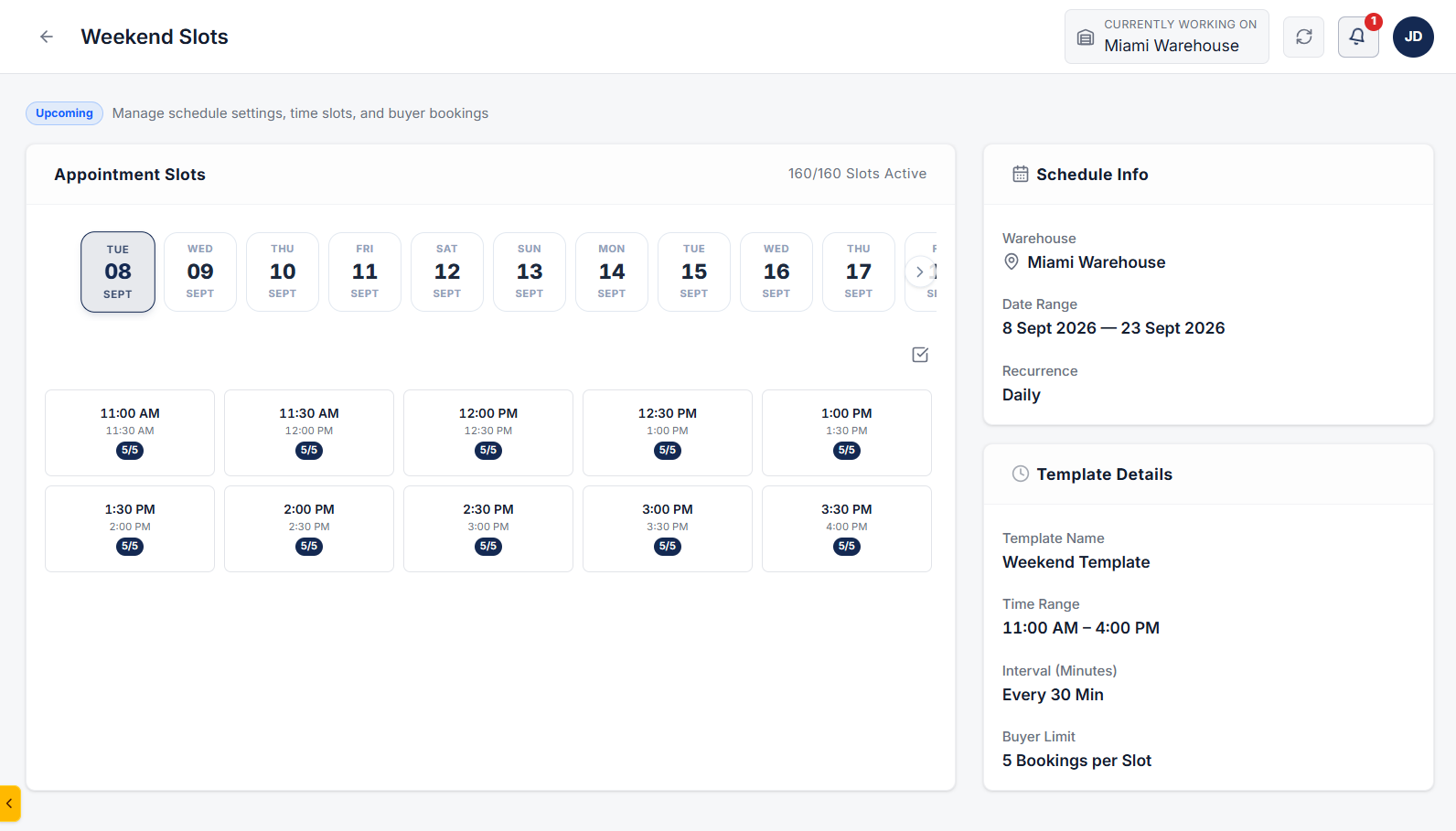
Your appointment slots are now generated, allowing buyers to select and book their preferred convenient pickup or delivery time slots.
Click on the 3 dots (more options menu) and select View slot details to view and manage appointment slots.
Clear answers on how this feature integrates into your daily liquidation workflow.
A template sets the window: start time, end time, slot interval, and how many buyers can book each slot. You reuse it when you generate a schedule.
Yes. After you pick a template and date range, choose daily, weekly (specific days), or monthly recurrence, then create the appointment so buyers can book.
Yes. You can create separate templates for customer dock pickups, consigner drop-offs, and outbound carrier dispatches with customized duration rules.
See the whole flow, from manifest import through grading, lot building, and buyer pickup, in a 30-minute walkthrough.