Intake
Web scraping
Automate inventory cataloging with powerful web scraping tools. Extract product details, high-resolution images, and descriptions from single product links or bulk CSV manifests to generate draft inventory in seconds.
IntakeAutomate inventory cataloging with powerful web scraping tools. Extract product details, high-resolution images, and descriptions from single product links or bulk CSV manifests to generate draft inventory in seconds.
Go to the Web Scraping page located under the Warehouse section in the main navigation menu.
This page serves as your central hub to scrape product details from the web, initiate single product imports, or manage bulk CSV scraping files.
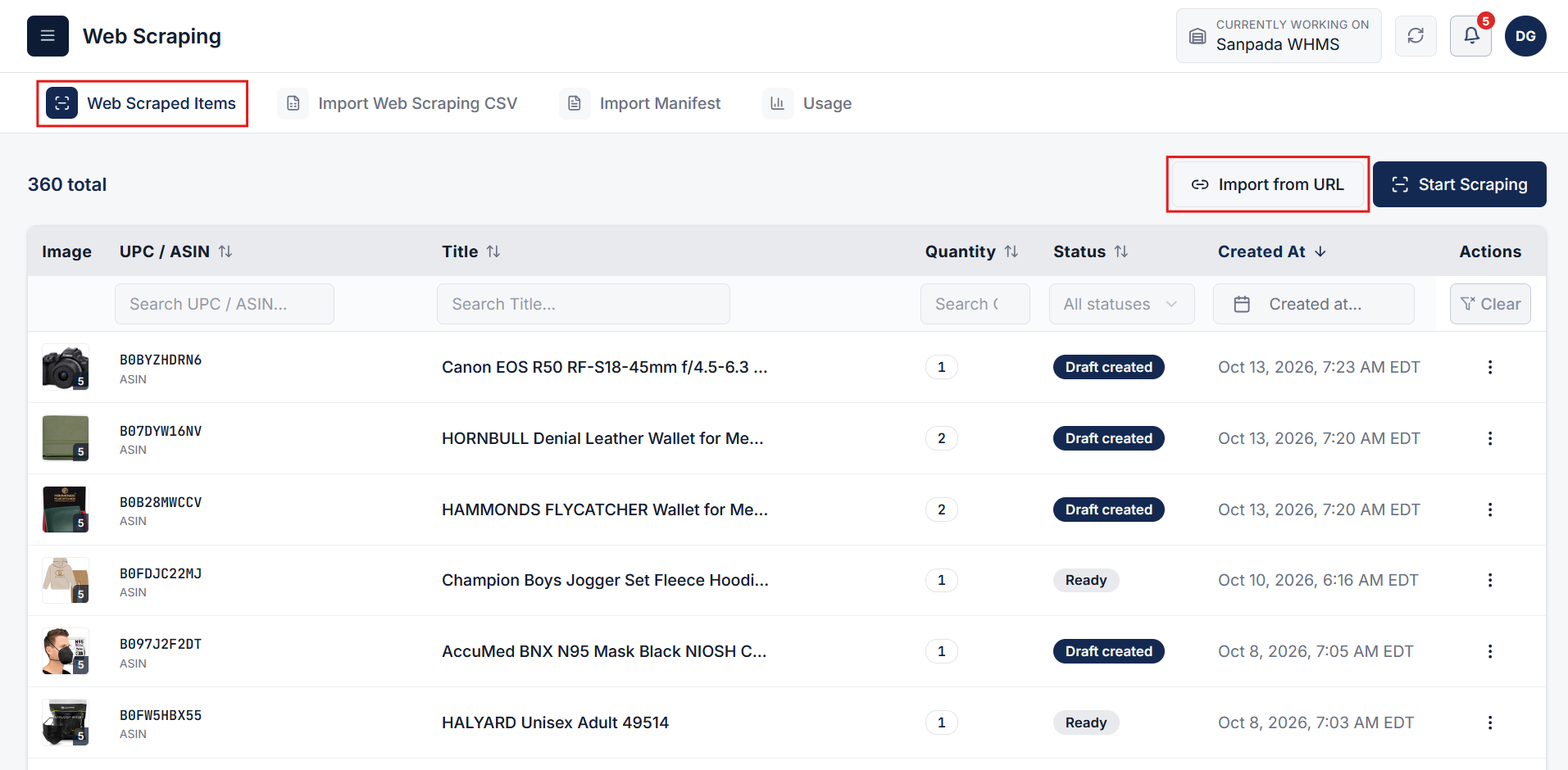
On the Web Scraped Items tab, click on the Import from URL button to open the product link import modal.
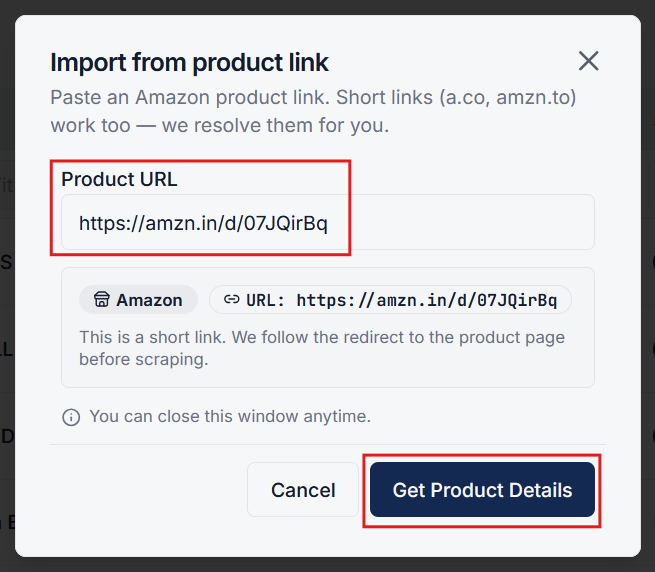
In the popup modal, enter or paste the product's web link (e.g., Amazon link) into the URL field and click Get Product Details. The scraping process will run automatically in the background to fetch the product's title, description, and images to generate draft inventory.
Alternatively, click on the Start Scraping button to open the barcode and product code lookup modal.
In this popup, you can either scan a barcode, upload a barcode/QR image, or manually enter an ASIN or UPC code to directly fetch product details and create draft inventory.
Note: Users can also perform this exact same scraping process directly from the Add Inventory page.
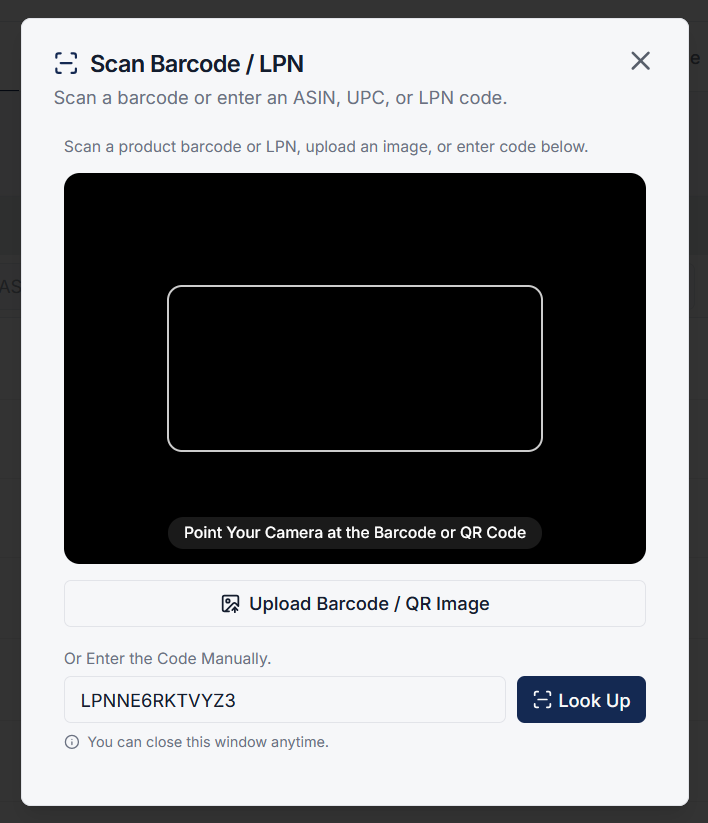
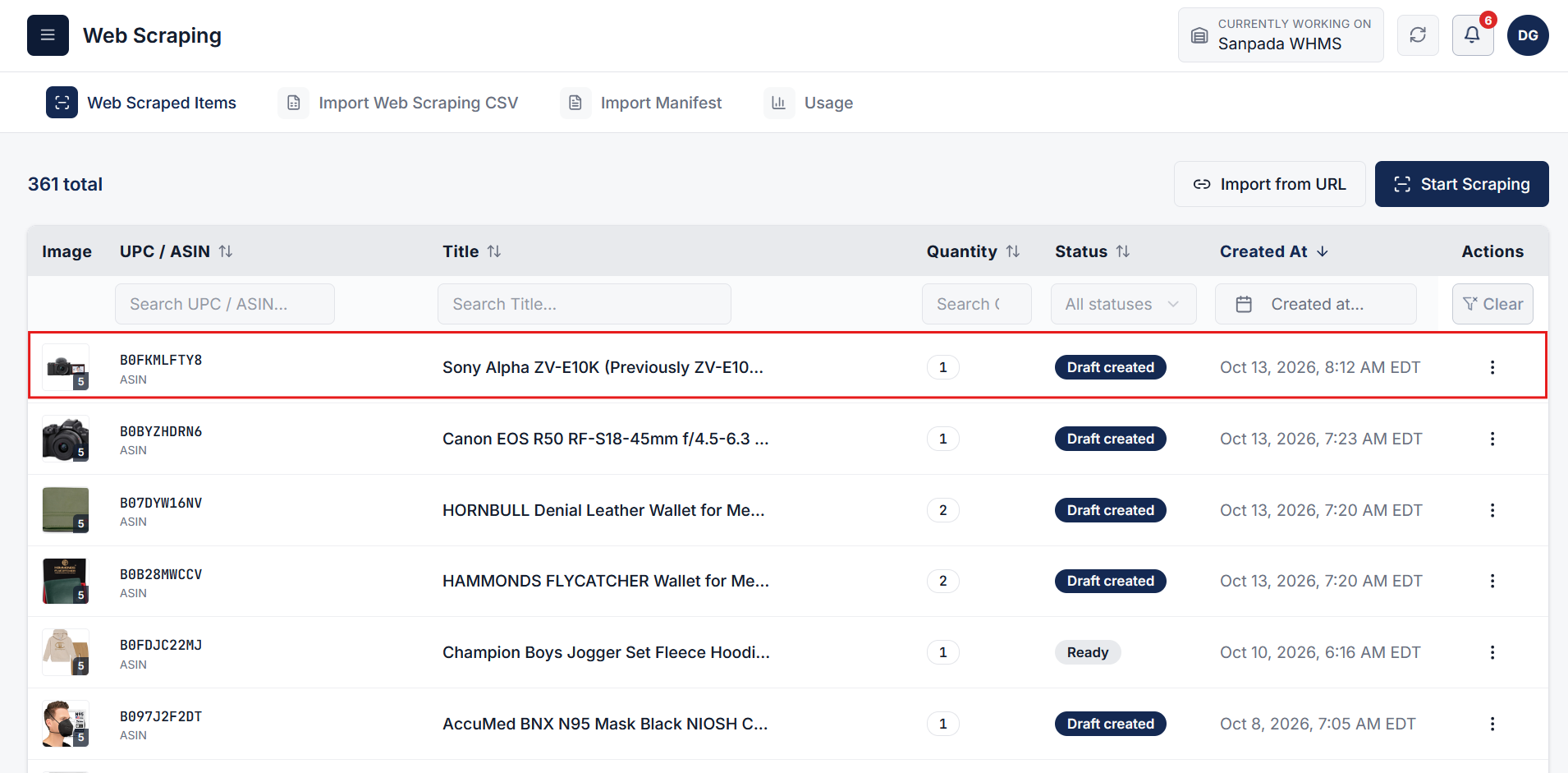
Once the scraping process finishes (via product link or ASIN/UPC code), a draft inventory record is automatically created for that product and listed in the Web Scraped Items table.
If you need to import more than one product at a time, navigate to the Import Web Scraping CSV tab to perform a bulk batch import.
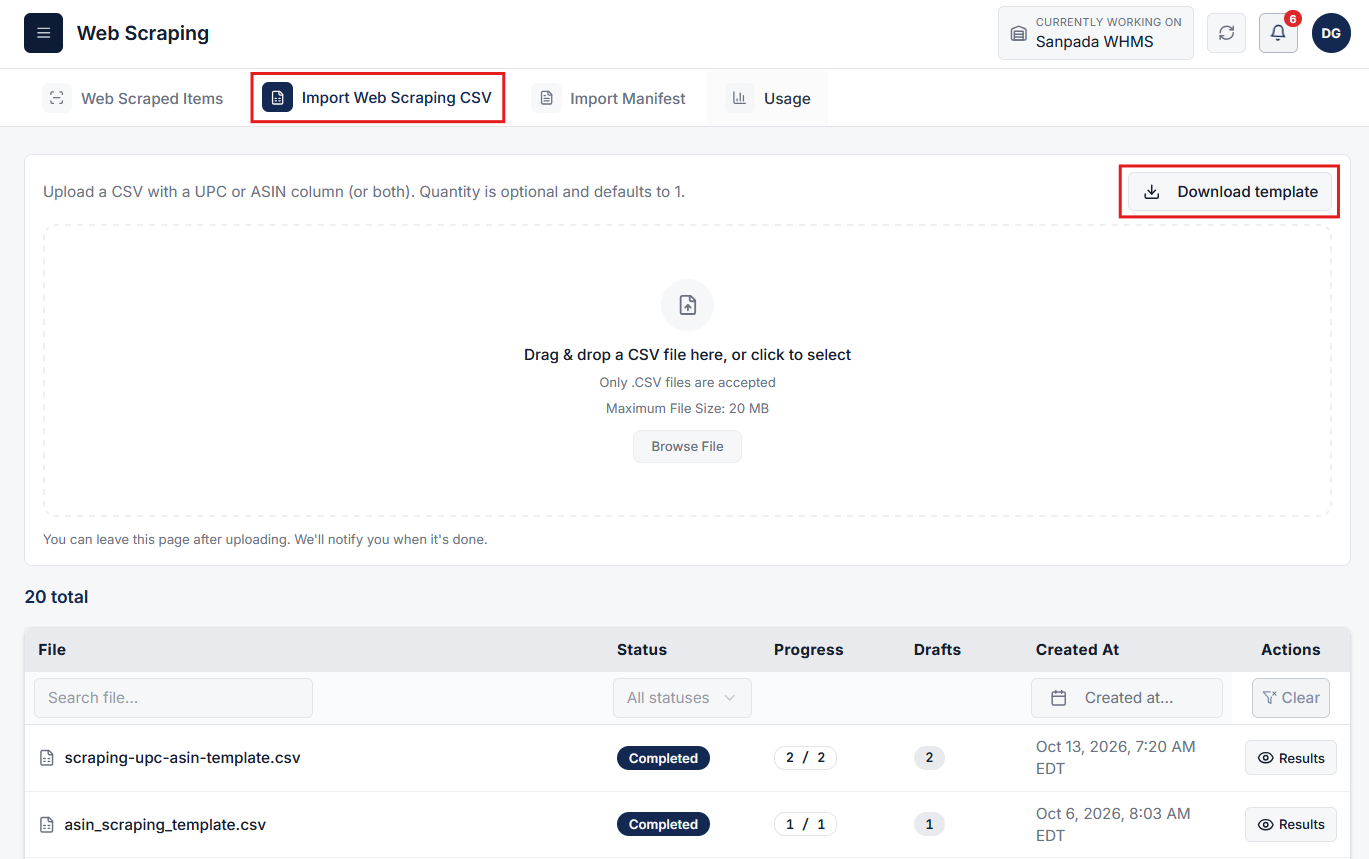
Click on the Download template button to download the standardized CSV template.
Populate the CSV spreadsheet with your product data, including the ASIN or UPC code and the number of items (quantity) for each product.
Upload your completed CSV file using the file upload area.
Once submitted, the system will process all items in the background. Based on the provided ASIN or UPC codes and item quantities, the system scrapes product details and generates draft inventory. Monitor the upload history table until the processing status updates to Completed.
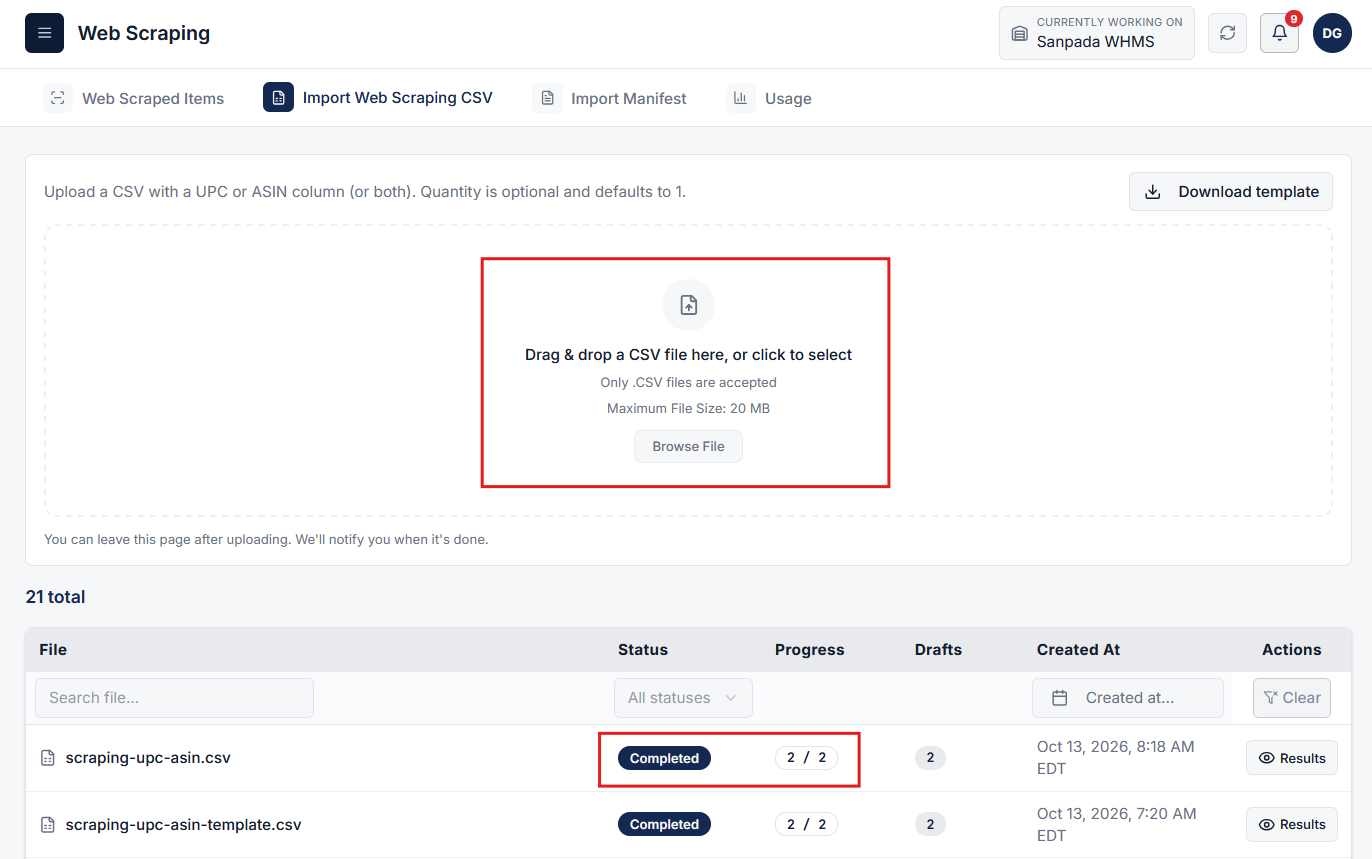
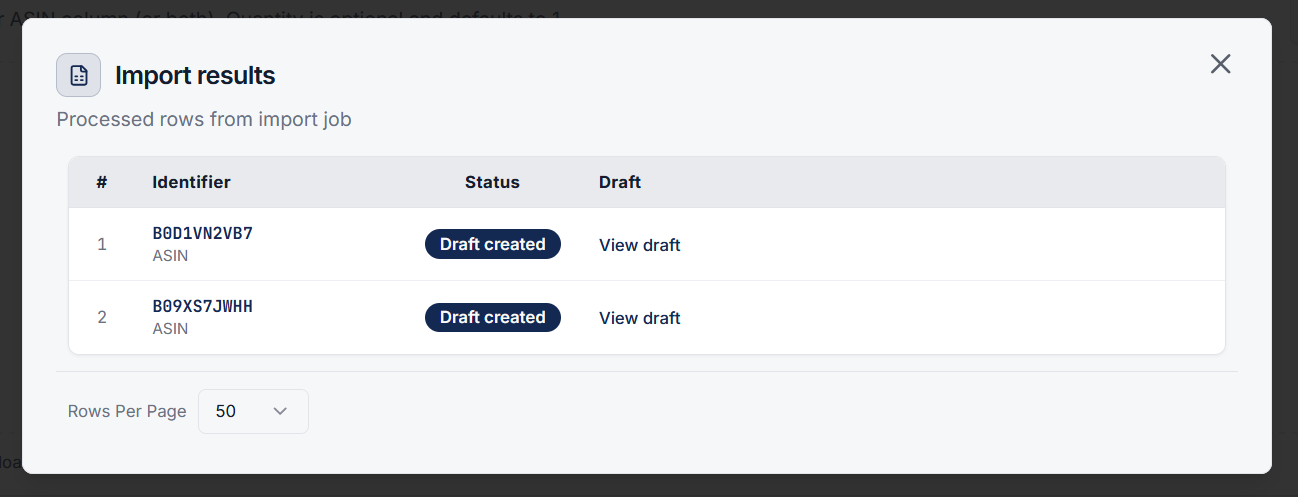
Once the upload process is completed and its status becomes Completed, draft inventory records will be automatically created for all items contained in the uploaded CSV file.
Click on the three dots (...) button in the Action column and select Result to see all the created draft inventory items.
Clear answers on how this feature integrates into your daily liquidation workflow.
You can scrape products using direct product URLs (such as Amazon), ASIN numbers, or UPC barcodes via handheld scanner, camera photo upload, or manual typing.
Yes. Switch to the Import Web Scraping CSV tab, download the template, enter your ASIN or UPC codes with desired quantities, and upload the CSV for automated batch processing.
Scraped titles, rich descriptions, and product images automatically create draft inventory records under Web Scraped Items, ready for condition grading and storage assignment.
See the whole flow, from manifest import through grading, lot building, and buyer pickup, in a 30-minute walkthrough.