

Pickup appointment booking
Manage and allocate pickup appointments to prevent dock congestion and streamline item retrieval.

Navigate to the Manage Booking page to view all your existing appointments.
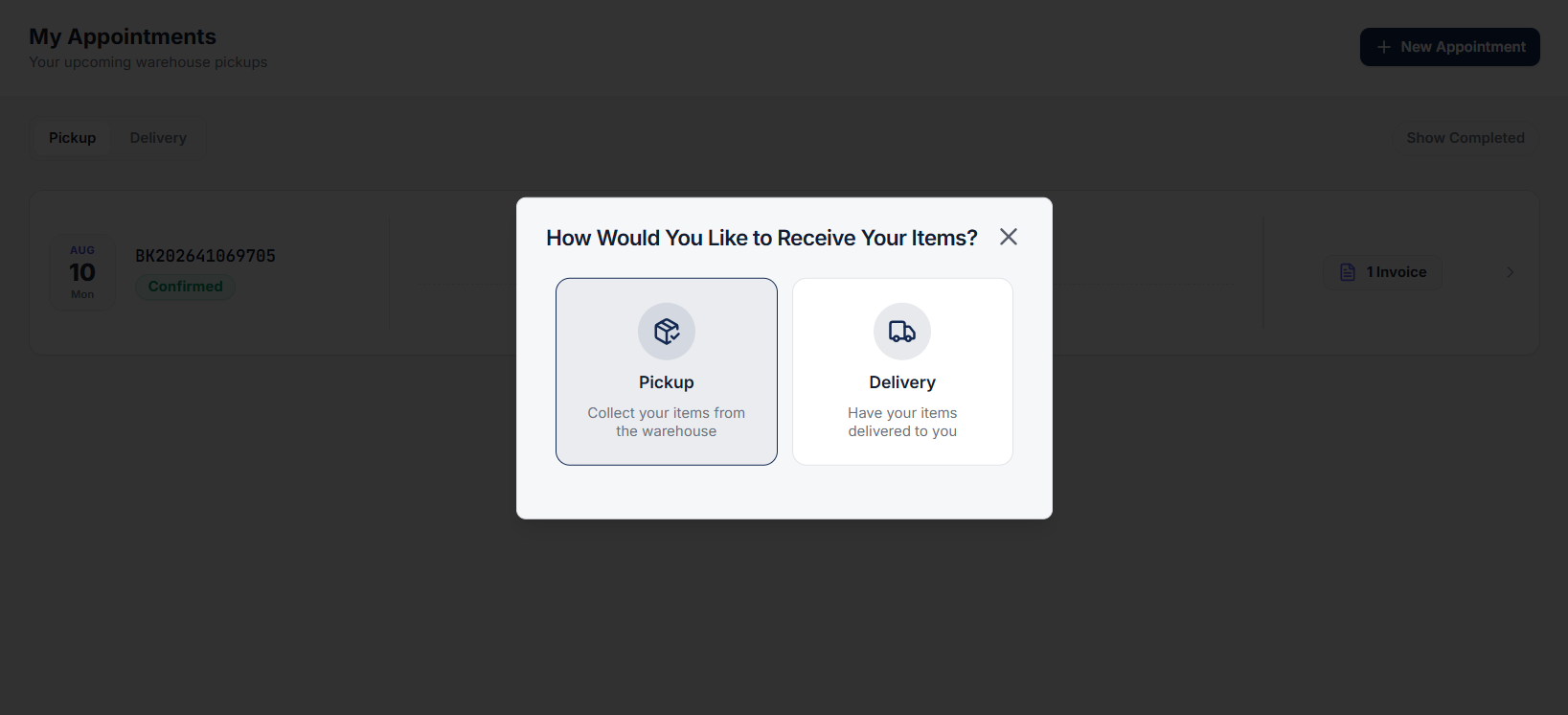
Click on the Add Appointment button to create a new appointment. A popup modal will appear on screen.
Select the Pickup option.
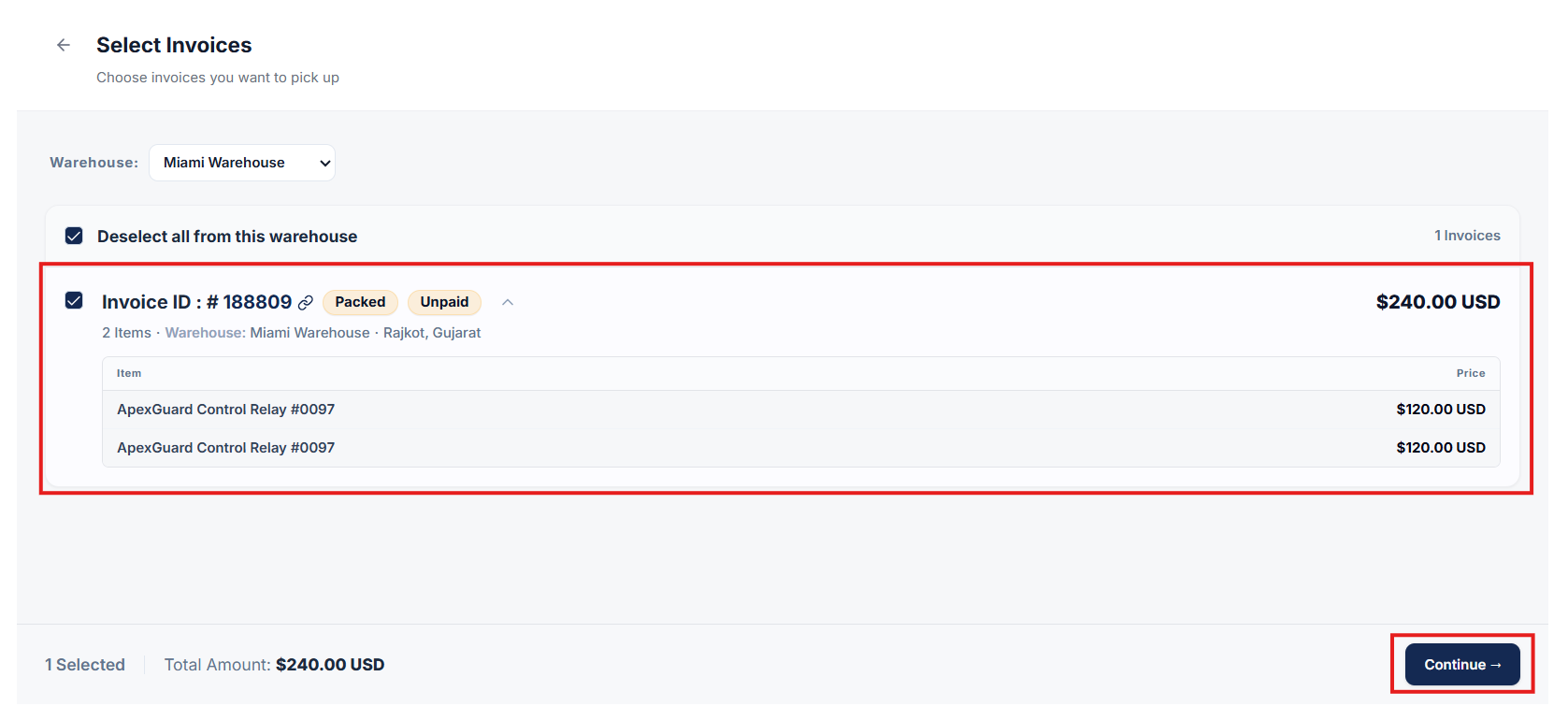
From the list of available invoices, select the specific invoice(s) you wish to pick up.
Click on the Continue button to proceed.
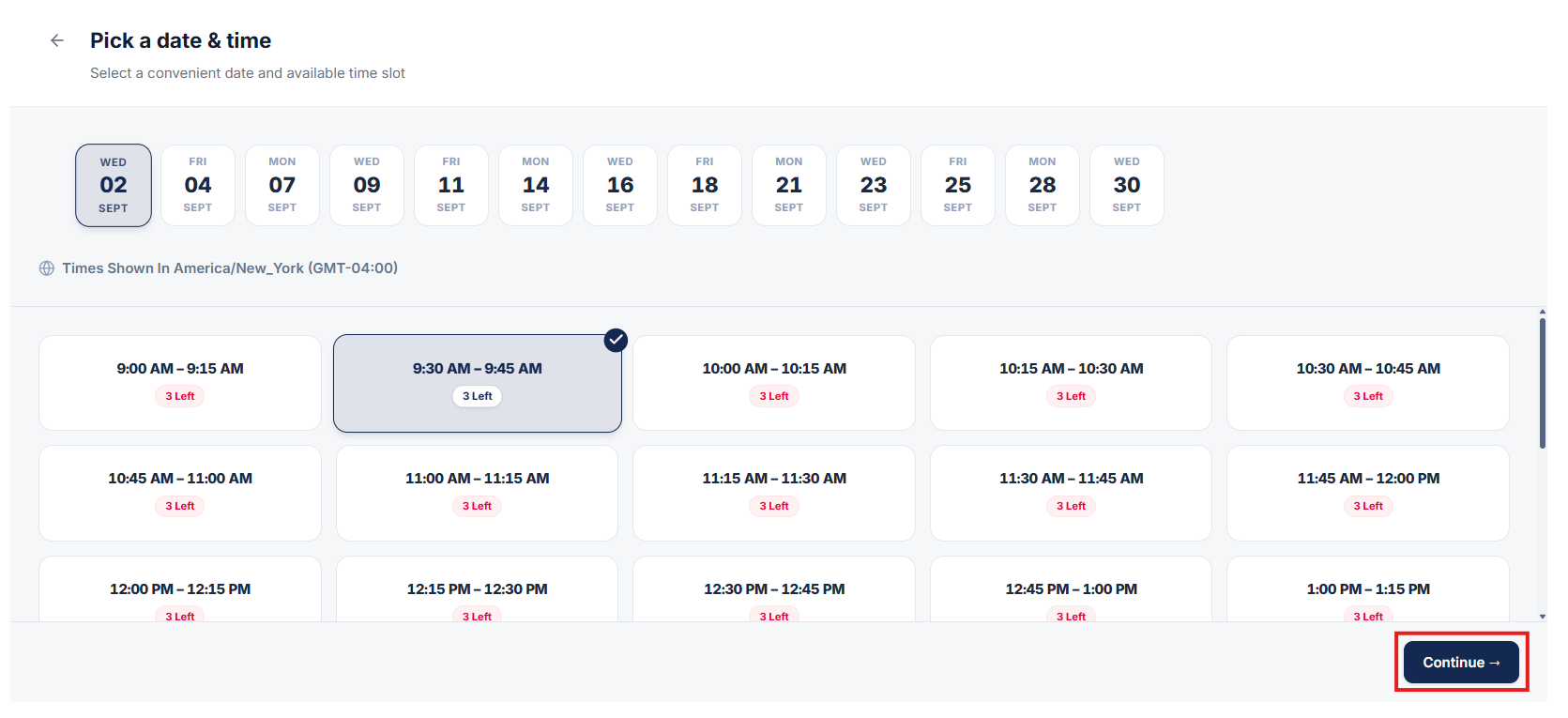
Select your preferred Date and convenient Time Slot for item pickup.
Click on the Continue button to proceed to the final confirmation.
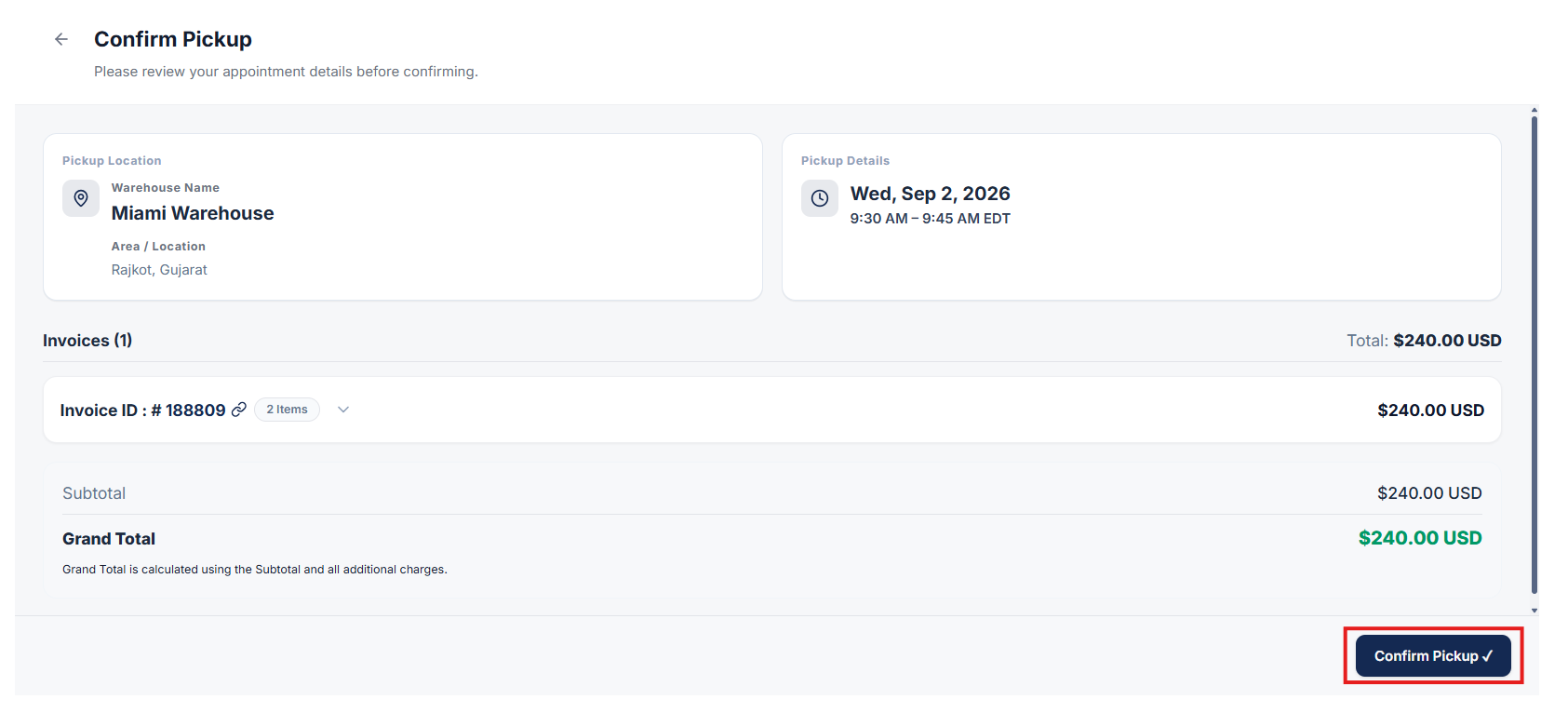
Review your pickup details and click Confirm to schedule your pickup appointment.
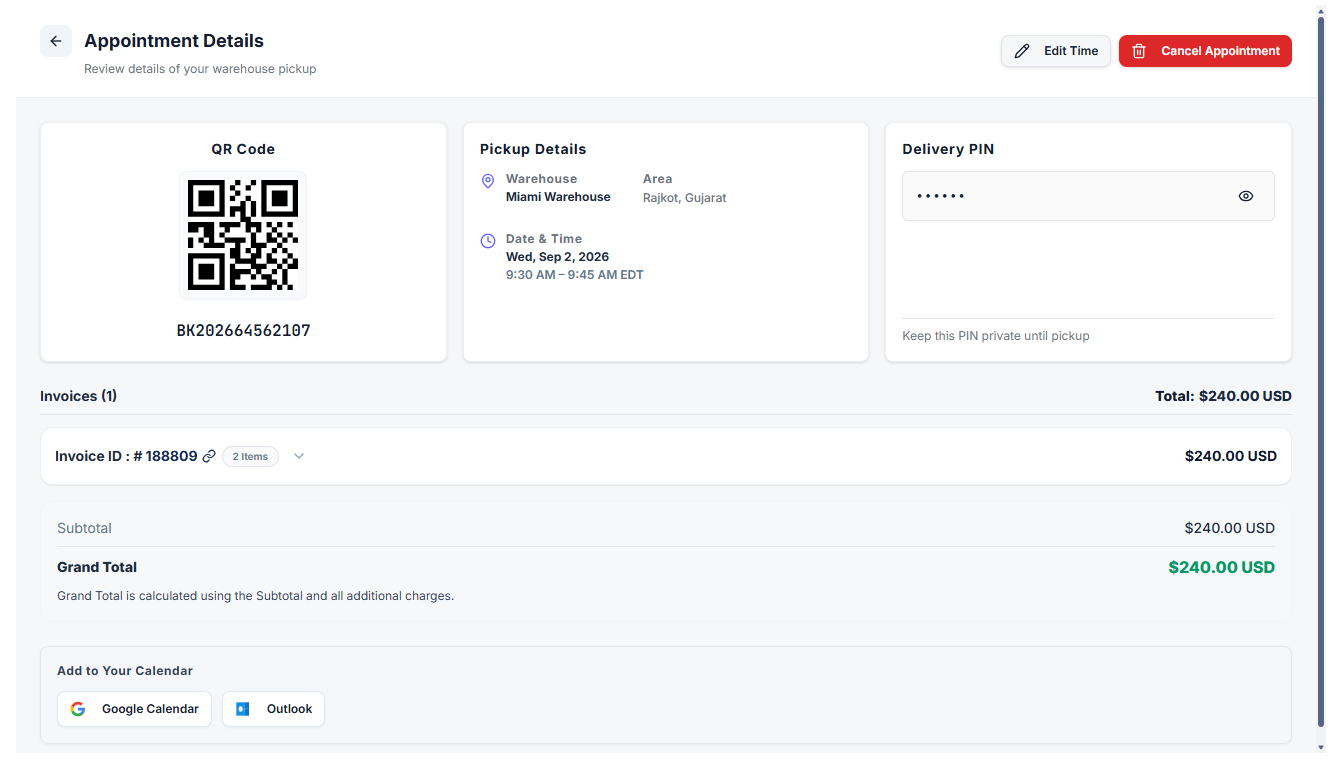
Once confirmed, you can view the full details of your booked appointment.
After an appointment is created, you can also cancel or reschedule the appointment at any time directly from the appointment details view.
Clear answers on how this feature integrates into your daily liquidation workflow.
Yes. Buyers navigate to Manage Booking, select the invoices they wish to pick up, and lock in a convenient date and time slot. Warehouse staff can monitor, cancel, or reschedule booked slots as needed.
It assigns each pickup a time slot so items are collected in a planned window. That keeps the dock from stacking walk-ins while packed invoices wait.
Buyers present their appointment QR pass or booking PIN, which warehouse staff scan to instantly pull up the pre-packed order.
See the whole flow, from manifest import through grading, lot building, and buyer pickup, in a 30-minute walkthrough.